ZMatrix Model Studio for Mac
Everything you need
for your own AI.
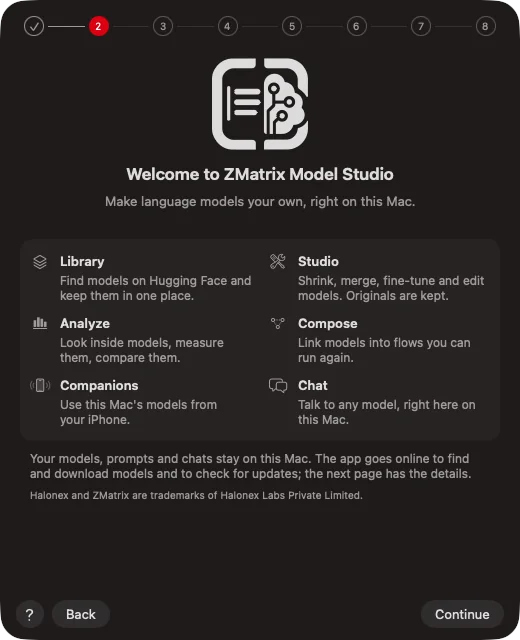
Find a model, make it smaller, shape how it behaves, teach it new things, see how it thinks, and chat with it. All in one beautiful, private Mac app.
Hover or tap the dots to explore.
Discover
Every model.
One beautiful library.
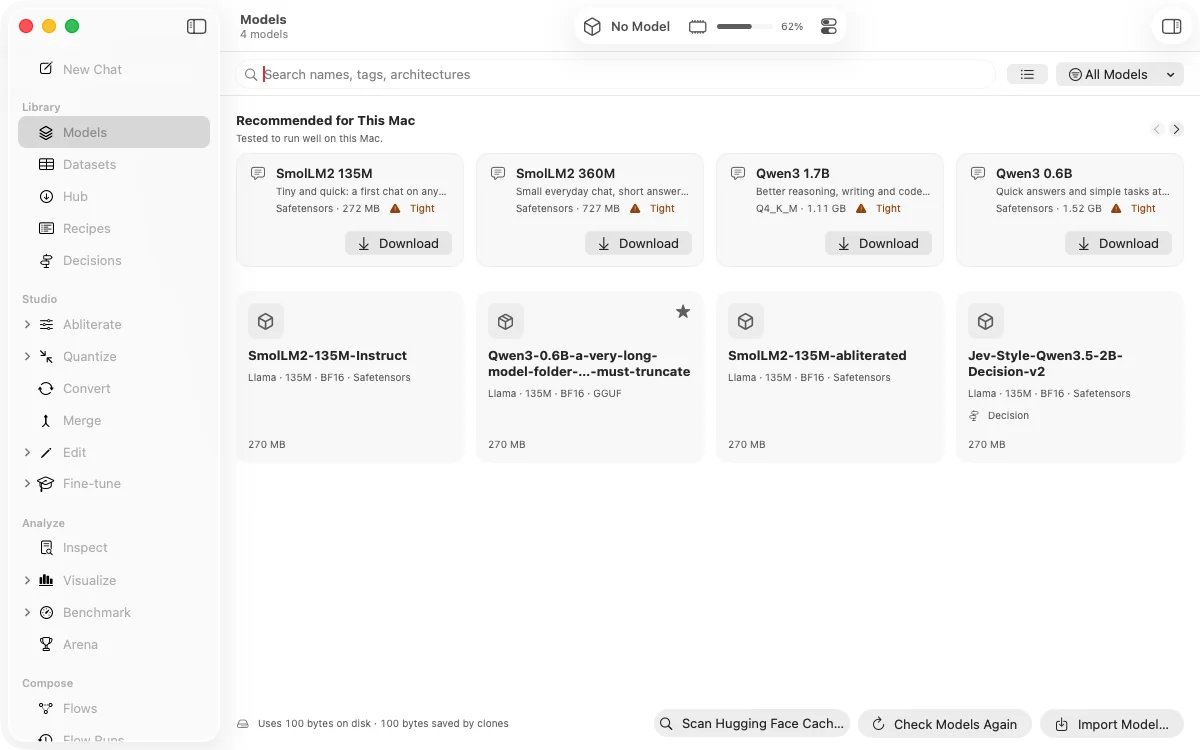
Everything you download, import or create lives in one place, with its size, its history and how well it suits your Mac. Keep models on an external drive if you like; ZMatrix remembers where they are.
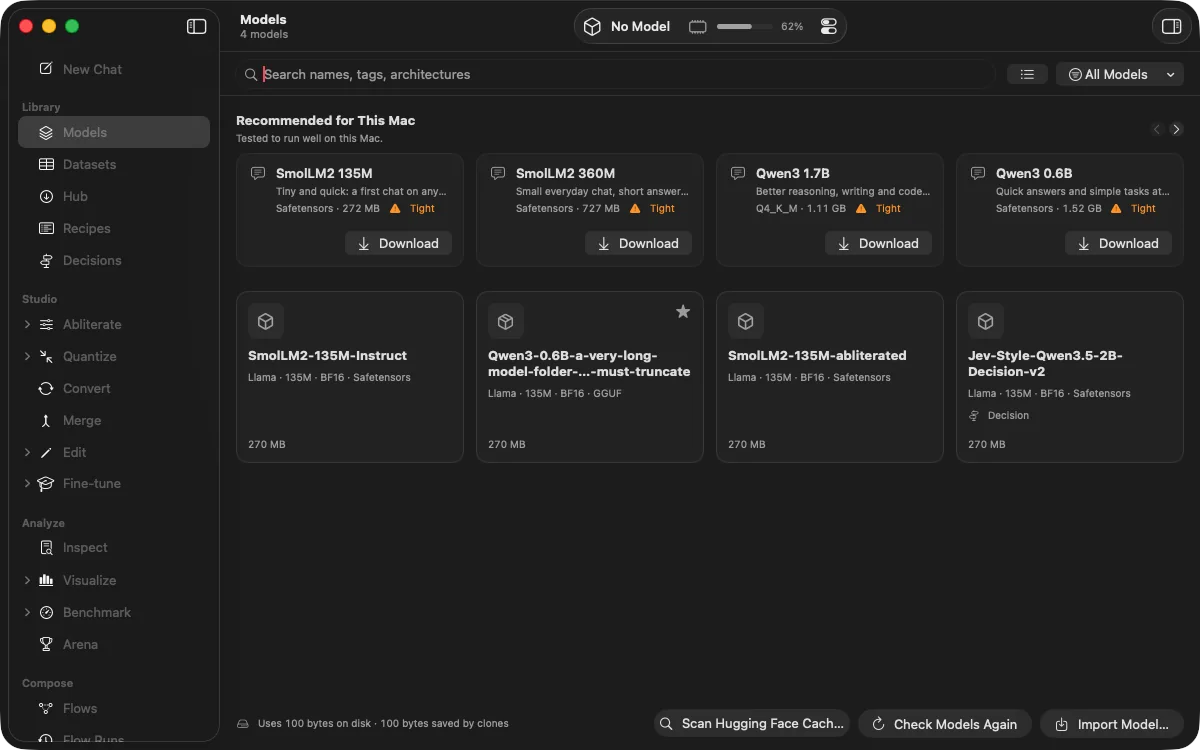
Hugging Face, built in
Search thousands of open models and see at a glance which ones will run well on your Mac.
Downloads you can trust
Big downloads run in the background, pick up where they left off and are checked before you use them.
Your own examples
Bring the examples and test questions you care about from a spreadsheet, a text file or Hugging Face.
Recipes
Save a series of steps, like download, shrink, test and publish, and run it again on any model.
Shrink
Smaller models.
Same smarts.
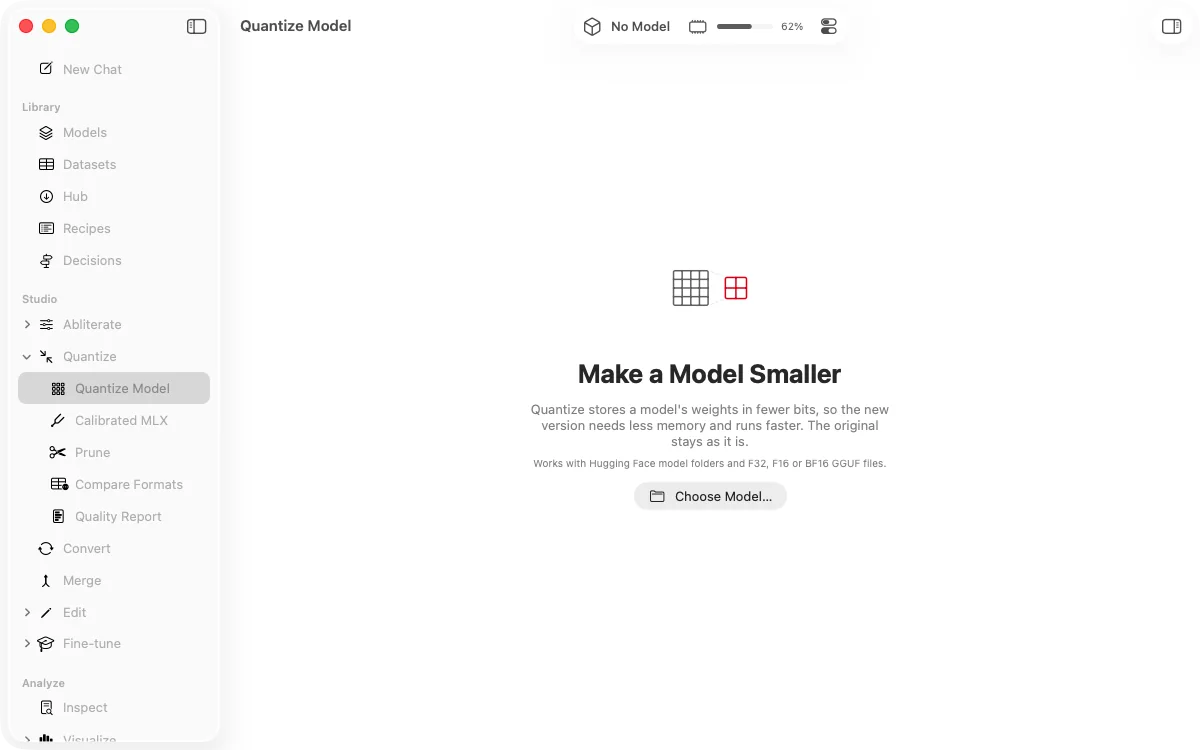
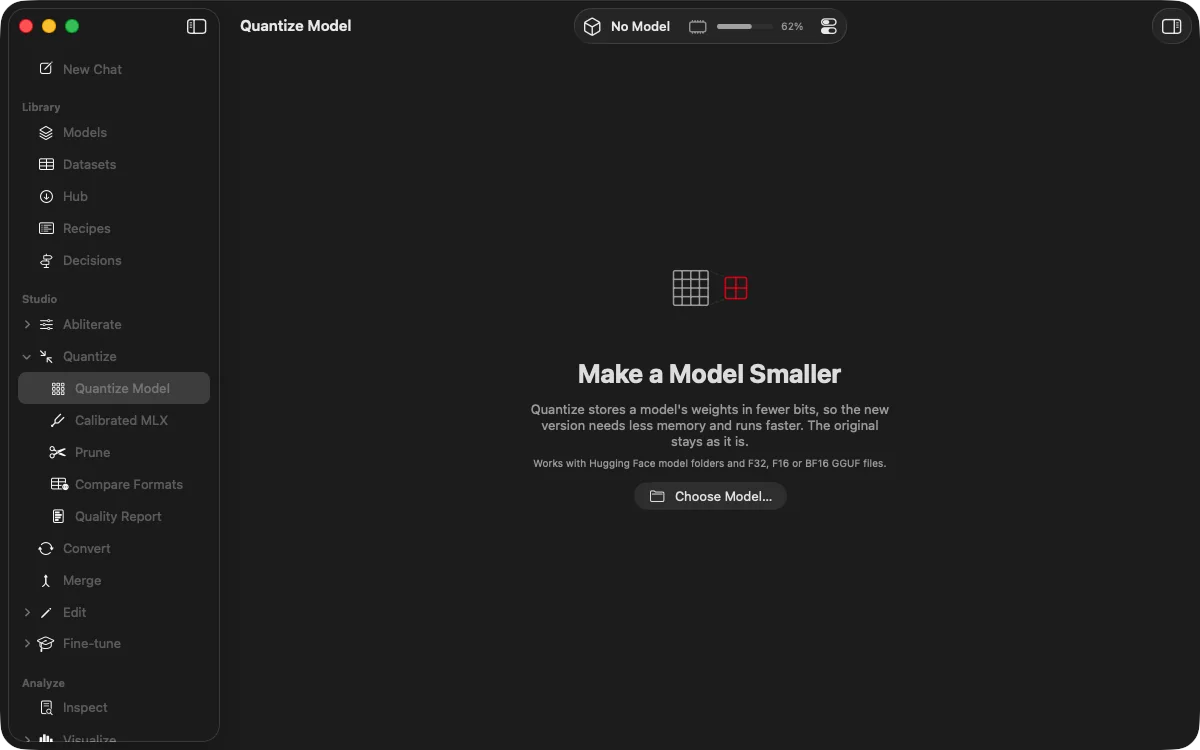
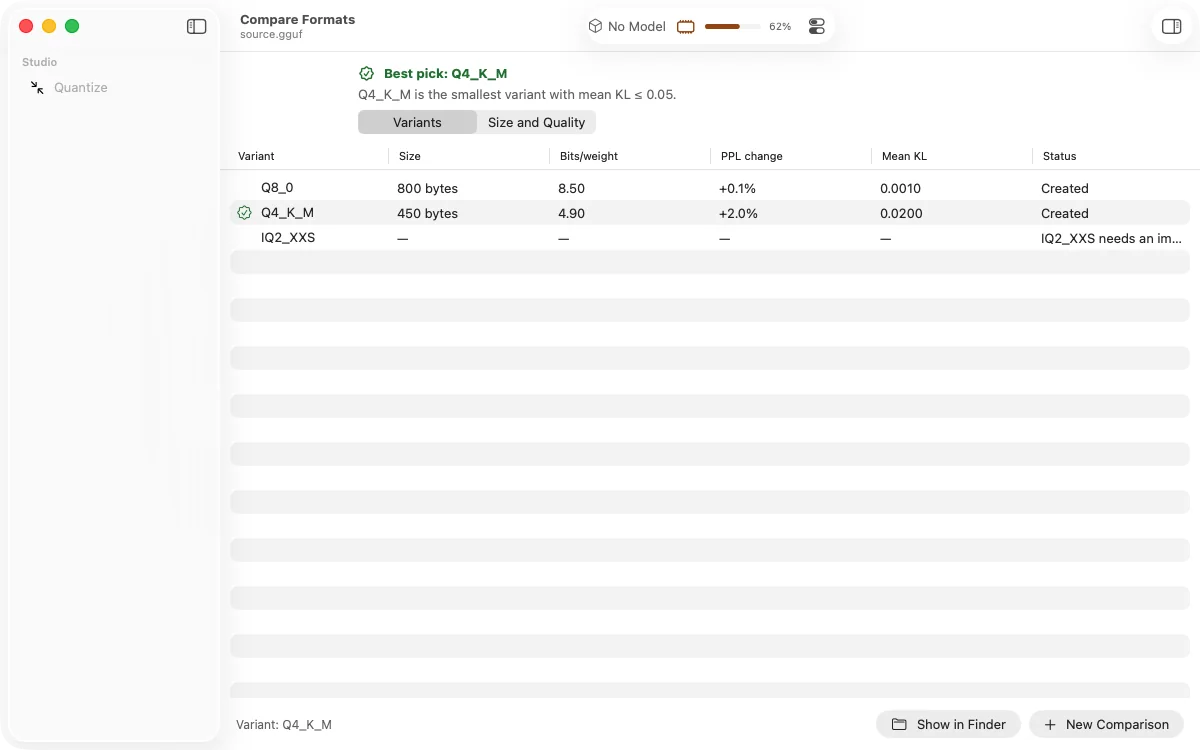
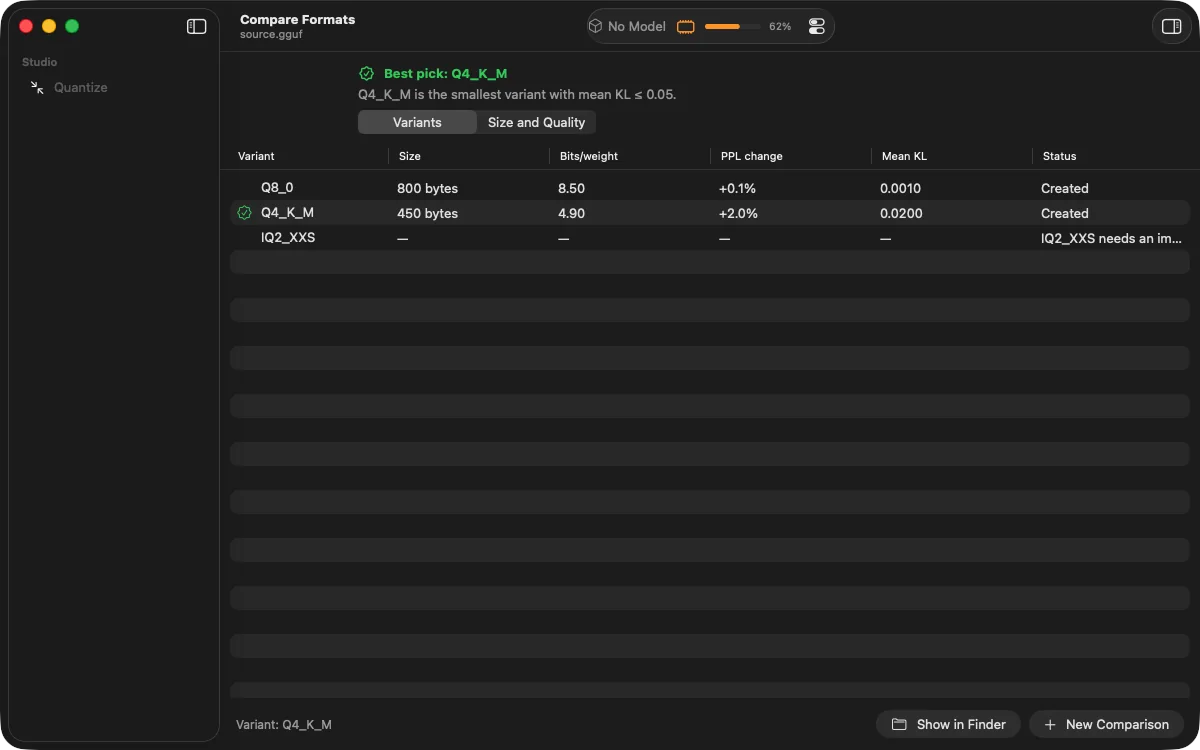
Make a model a fraction of its size so it loads faster, answers sooner and leaves room for everything else. ZMatrix makes several versions at once and recommends the smallest one that still performs well.
Every popular format
Works with GGUF, MLX and Hugging Face models, and converts between them whenever you need to.
Quality you can see
Each version comes with a simple report on what it kept and what it lost compared with the original.
Ready for apps
Export to Apple's Core ML, ready to build into your own apps for Mac and iPhone.
Customise
Shape its personality.
No retraining needed.
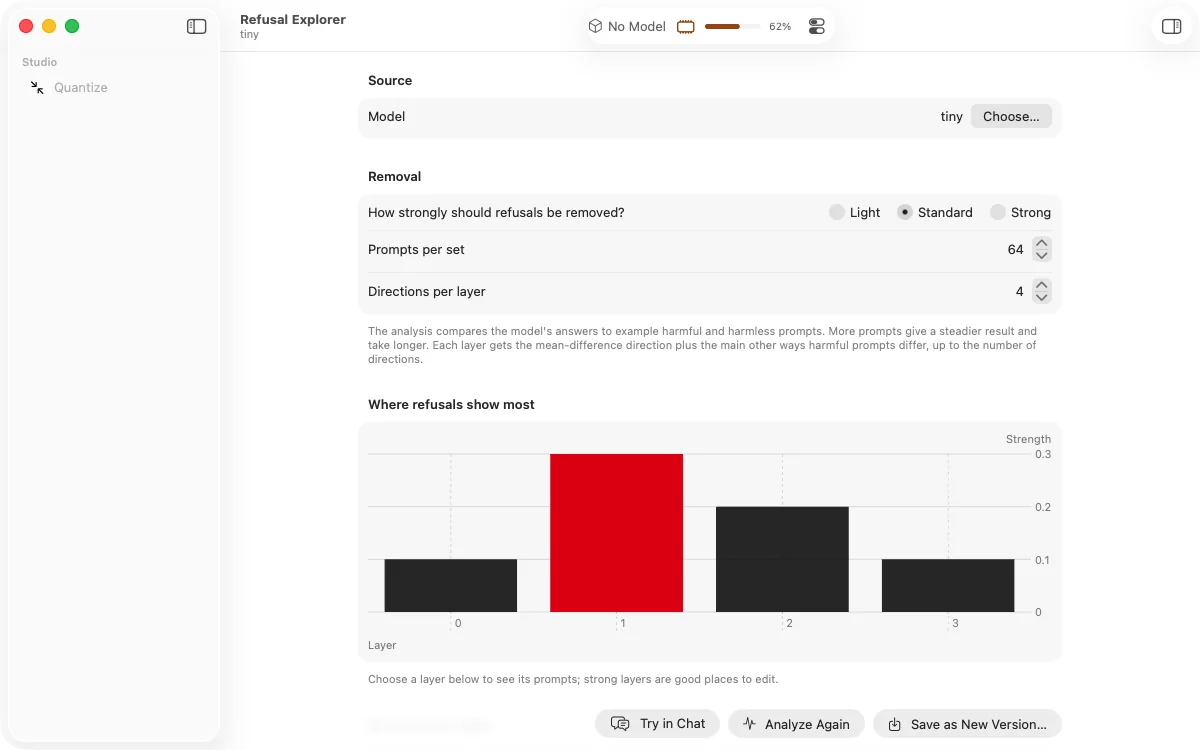
See where a behaviour lives inside a model, then adjust it. Cut needless refusals, tone down lecturing, steer its style, or blend two models into one. Automatic when you want it, hands-on when you don't.
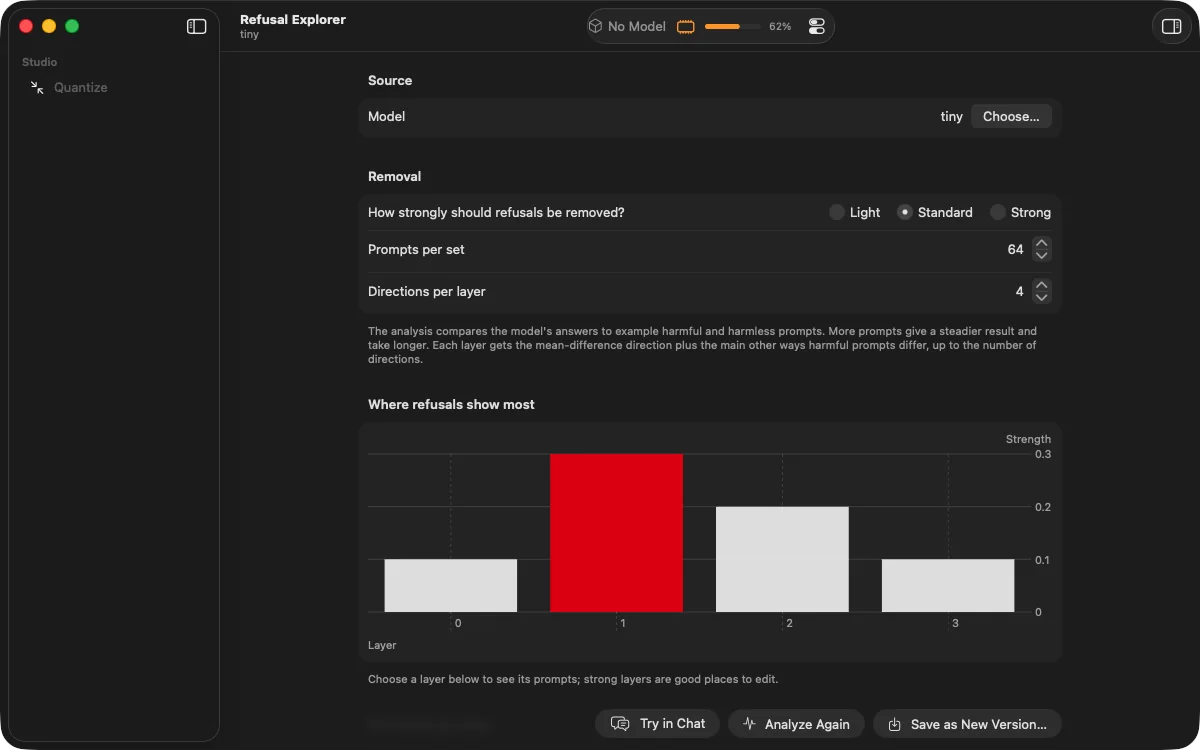
Fewer refusals
Find what makes a model refuse harmless requests and dial it back, while staying close to the original.
Tone and style
Turn down habits like moralising or wordiness, or steer the style with a simple slider.
Blend models
Combine the strengths of two models into a single new one.
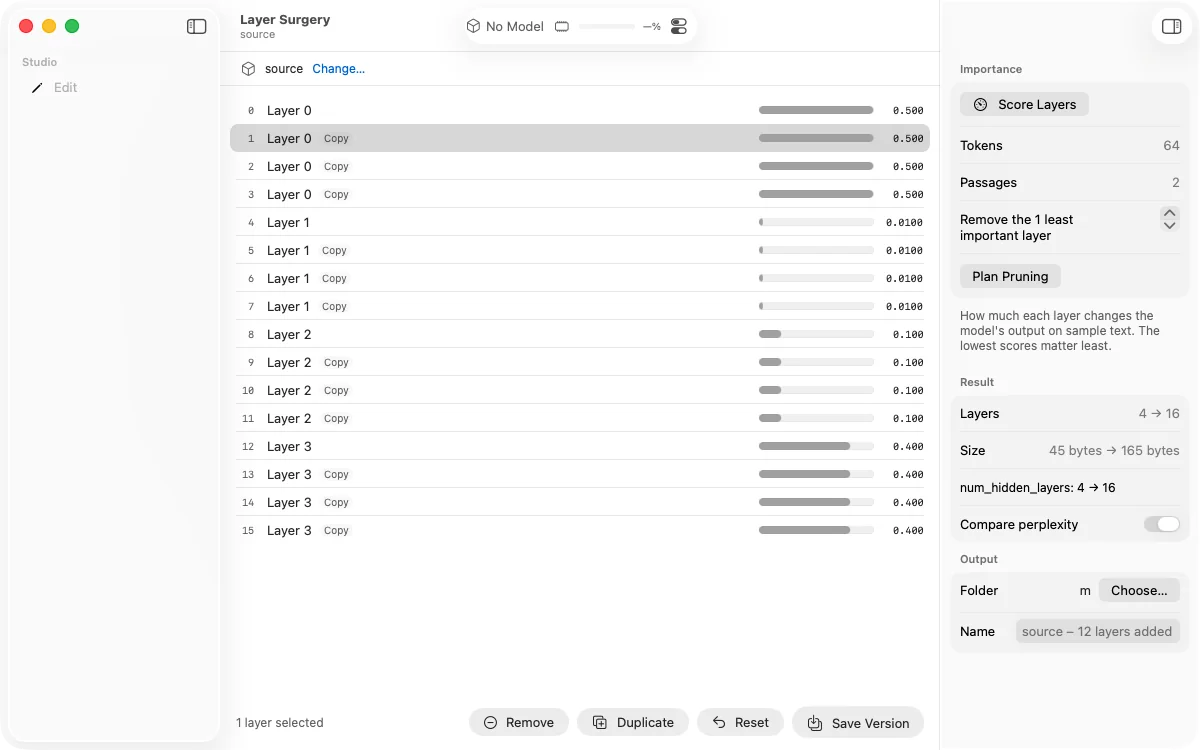
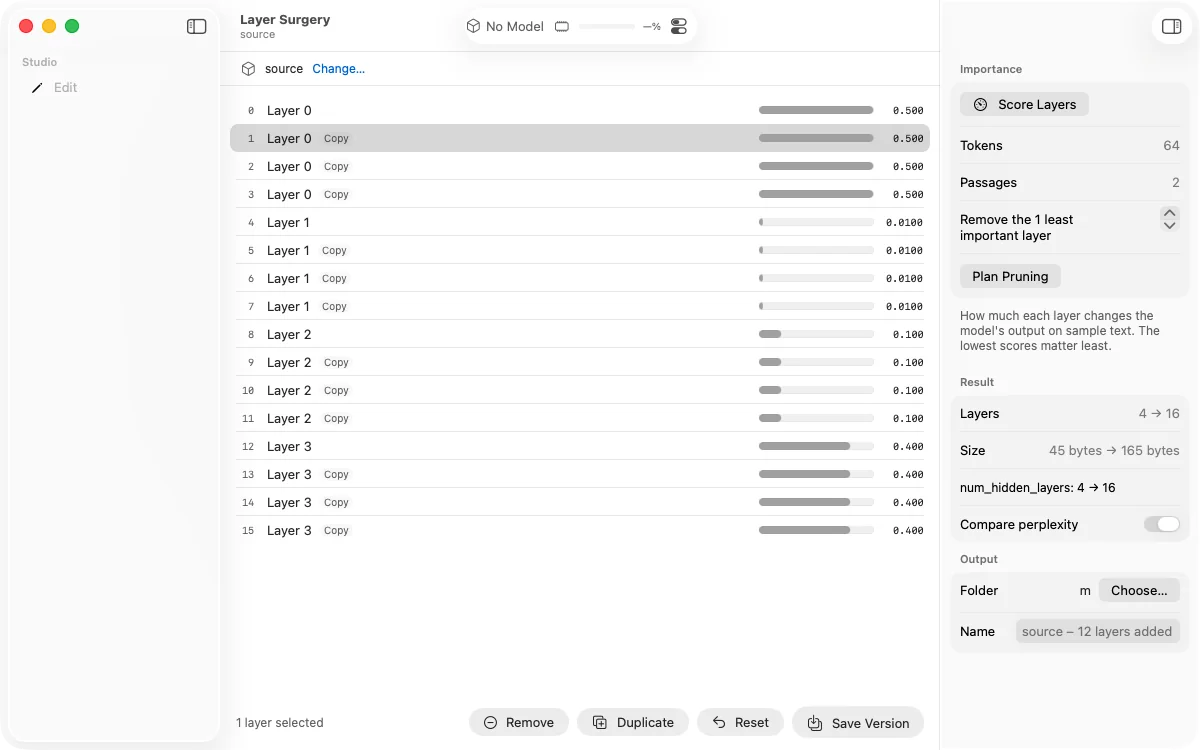
Trim and rearrange
Remove or repeat parts of a model, guided by how much each part matters.
Add-ons and formats
Stack small add-ons that teach a model new skills, and adjust how its conversations are laid out.
Every version saved
Each change is a new version you can compare with any other, or go back to at any time.
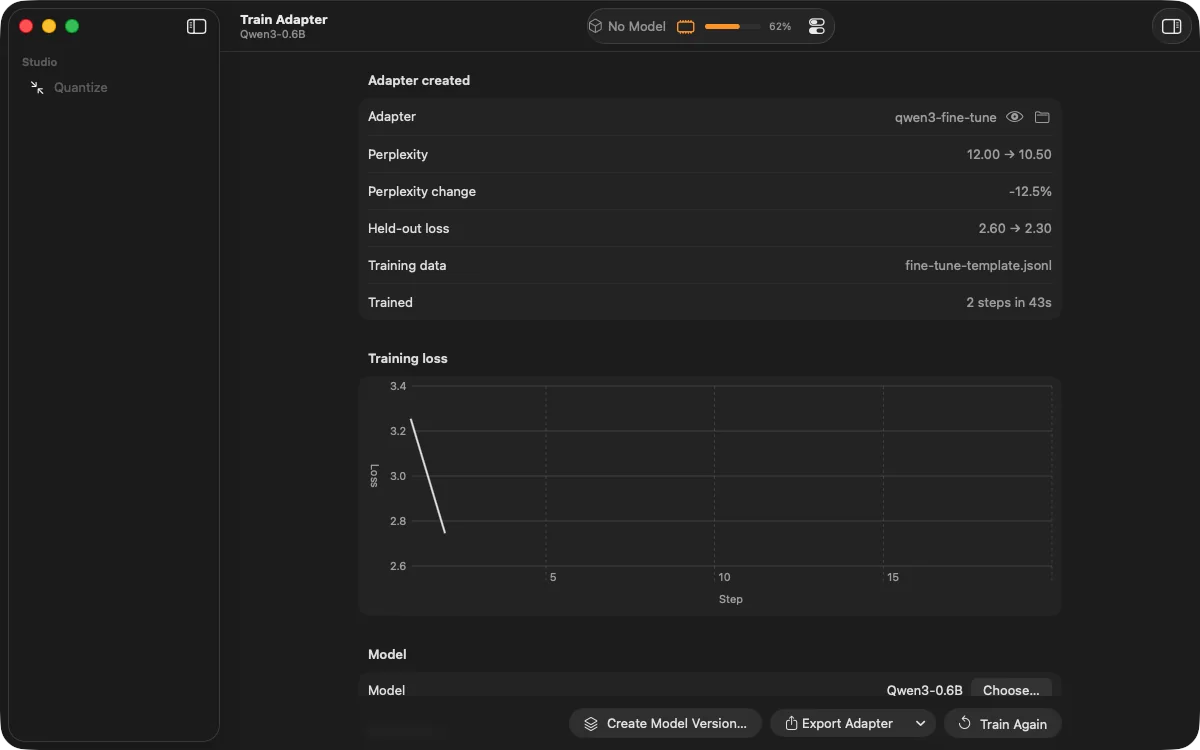
Train
Teach it with
your own examples.
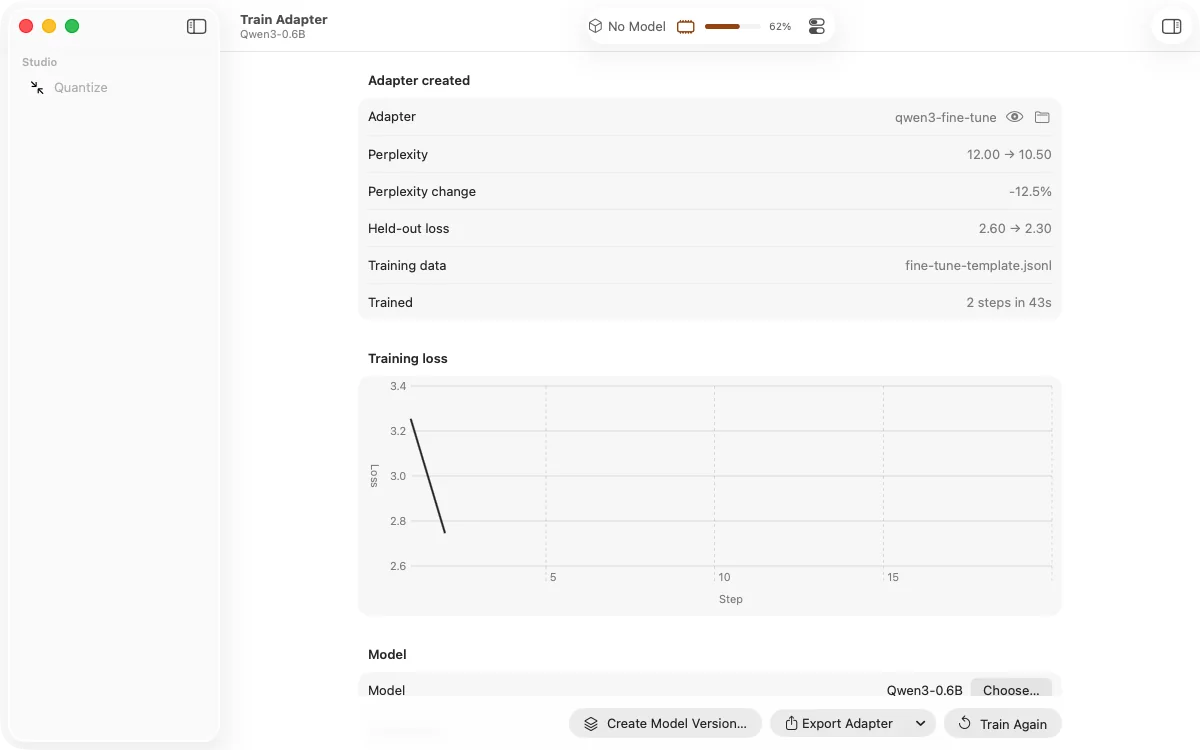
Show the model what you want with a handful of examples from a spreadsheet or a text file. ZMatrix suggests every setting, explains why, and tells you how long it will take before it starts.
- Picks up where it left off if you restart
- Checks your examples for problems first
- Try the result in Chat right away, or save it as a new model
Understand
Look inside
while it thinks.
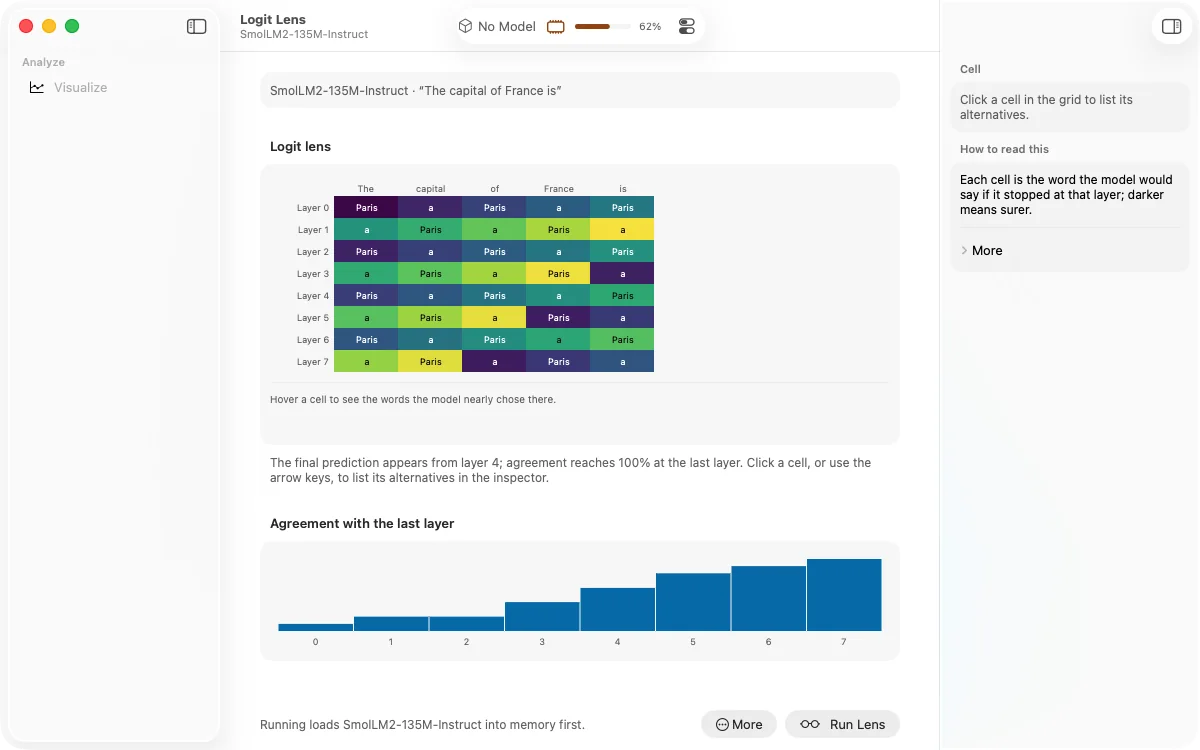
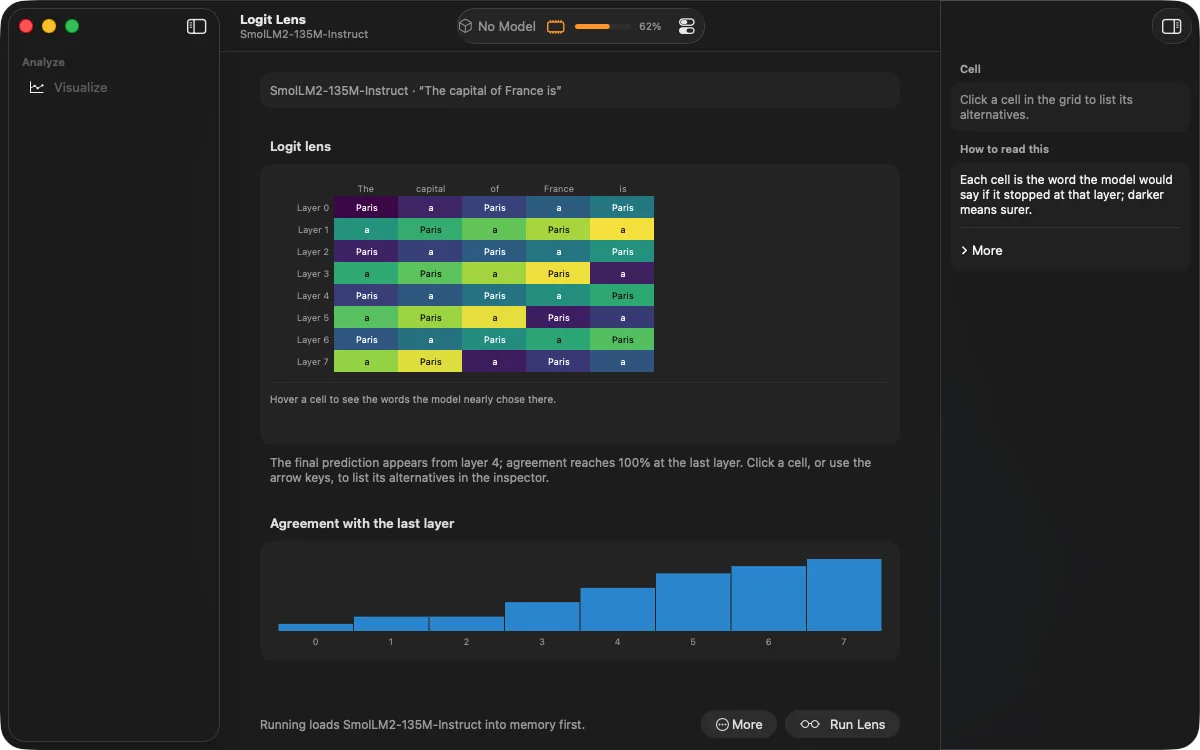
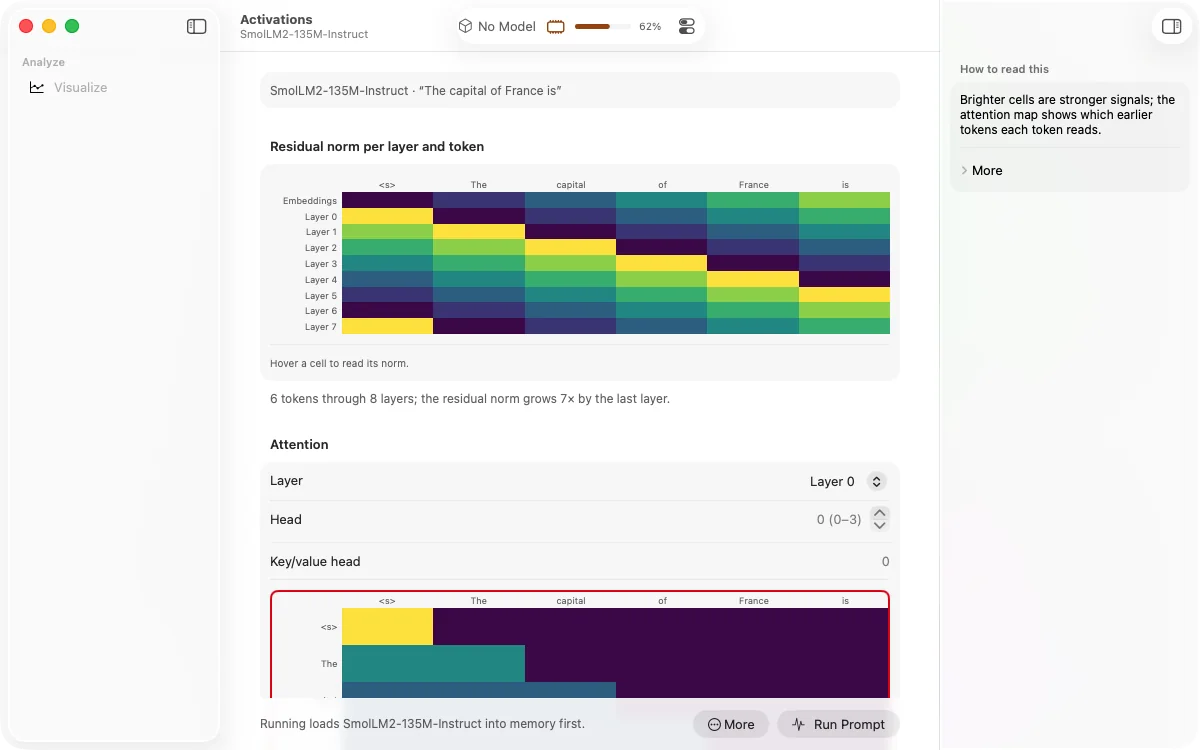
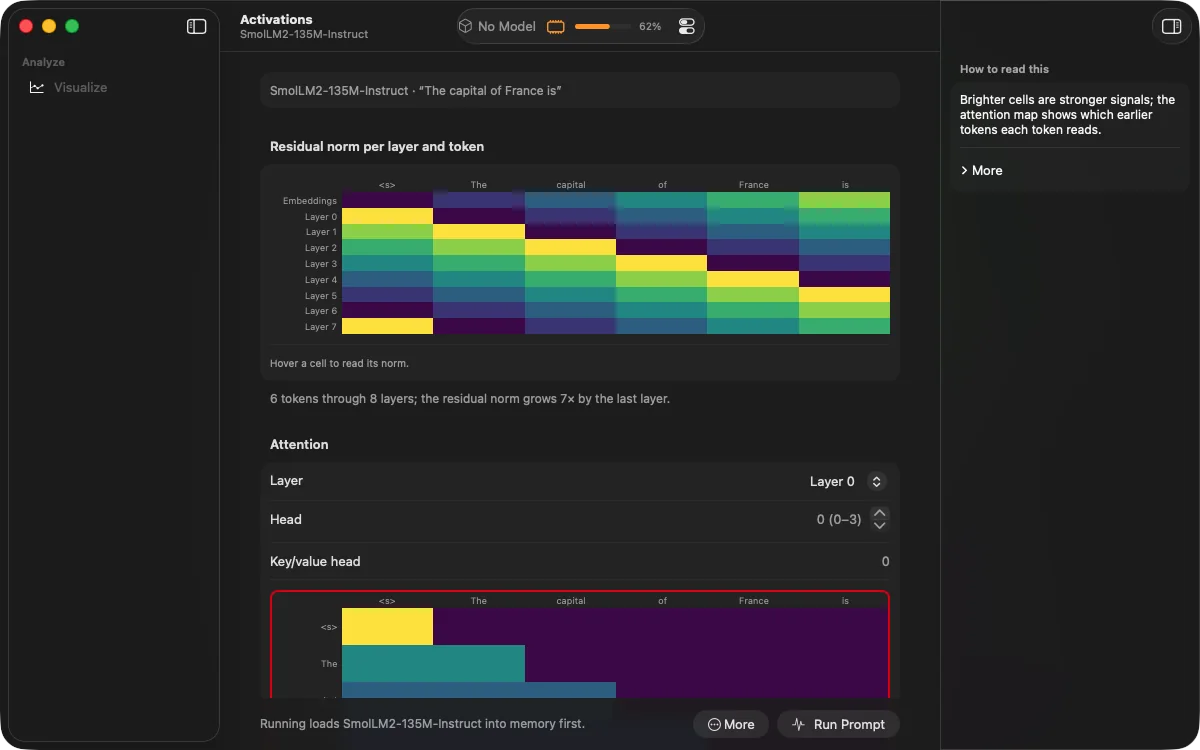
Ask a question and follow it through the model: which words it pays attention to, what it would say at each step, and how its answer takes shape. Every view comes with a plain-language guide.
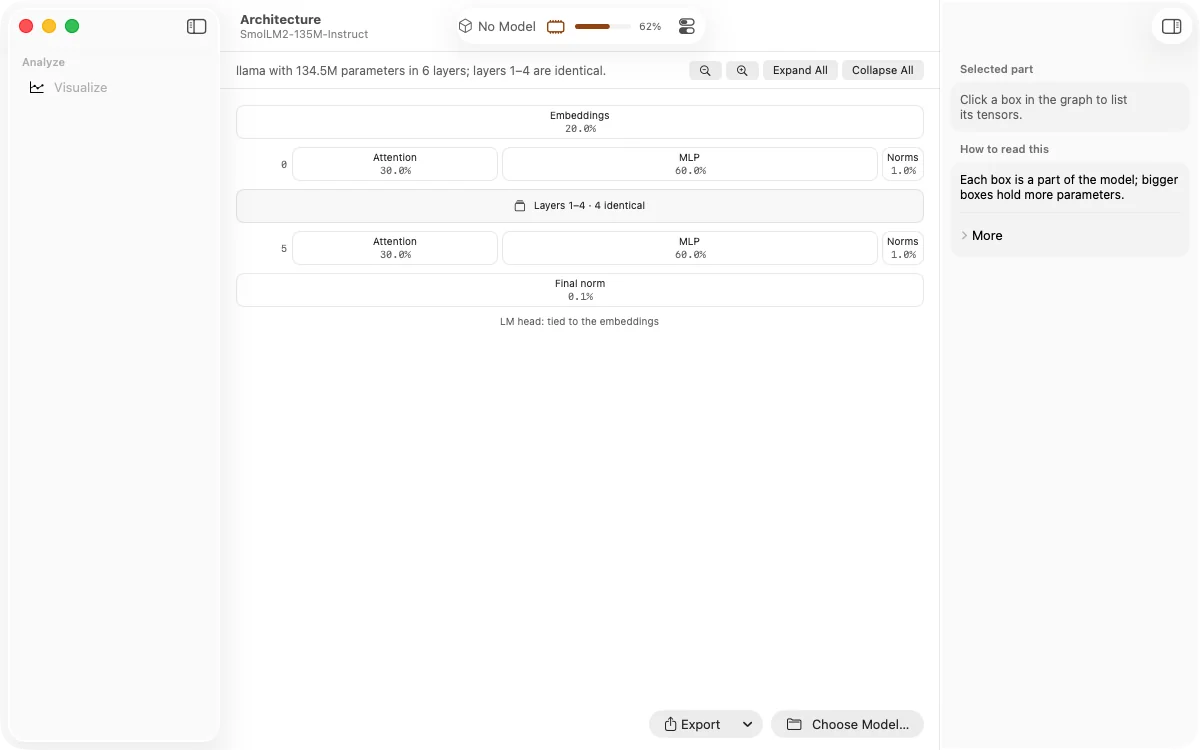
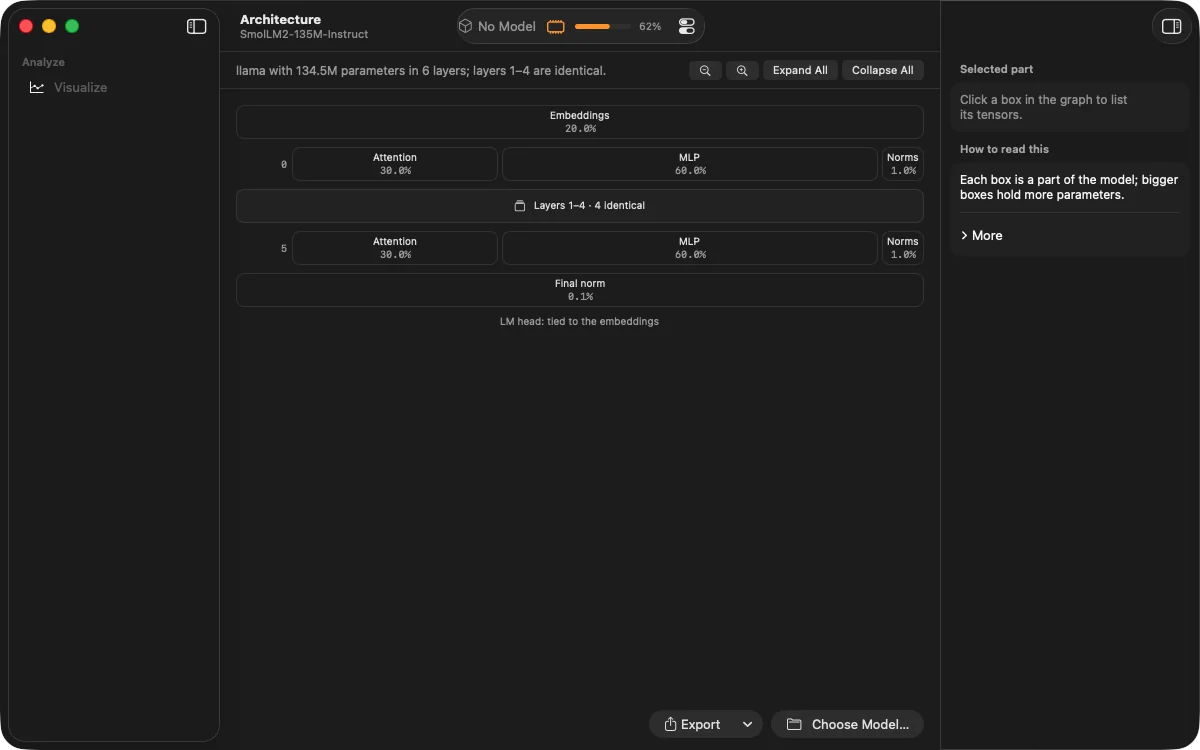
Know what's inside
See how a model is built and how big each part is, before you load it.
Watch it decide
Colourful, interactive maps show how each word shapes the next.
Explore other answers
In Chat, see the words a model almost chose, and take the conversation in a new direction from any of them.
Compare
Know which
version is best.
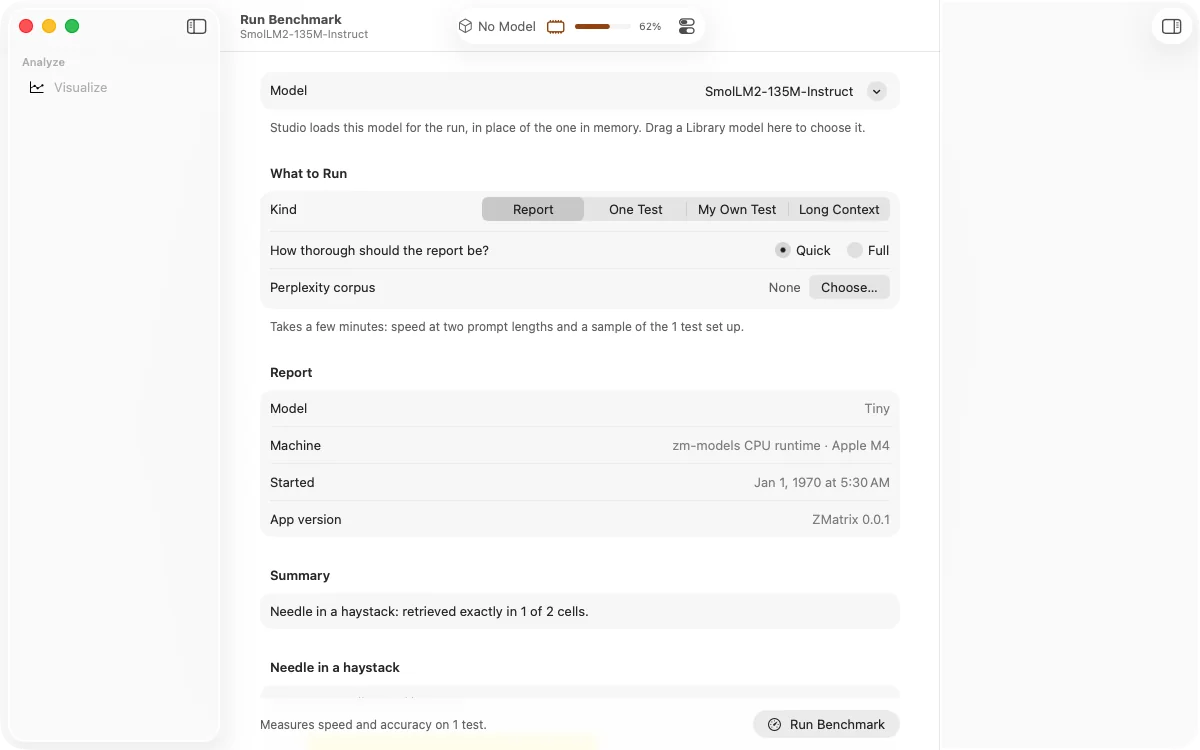
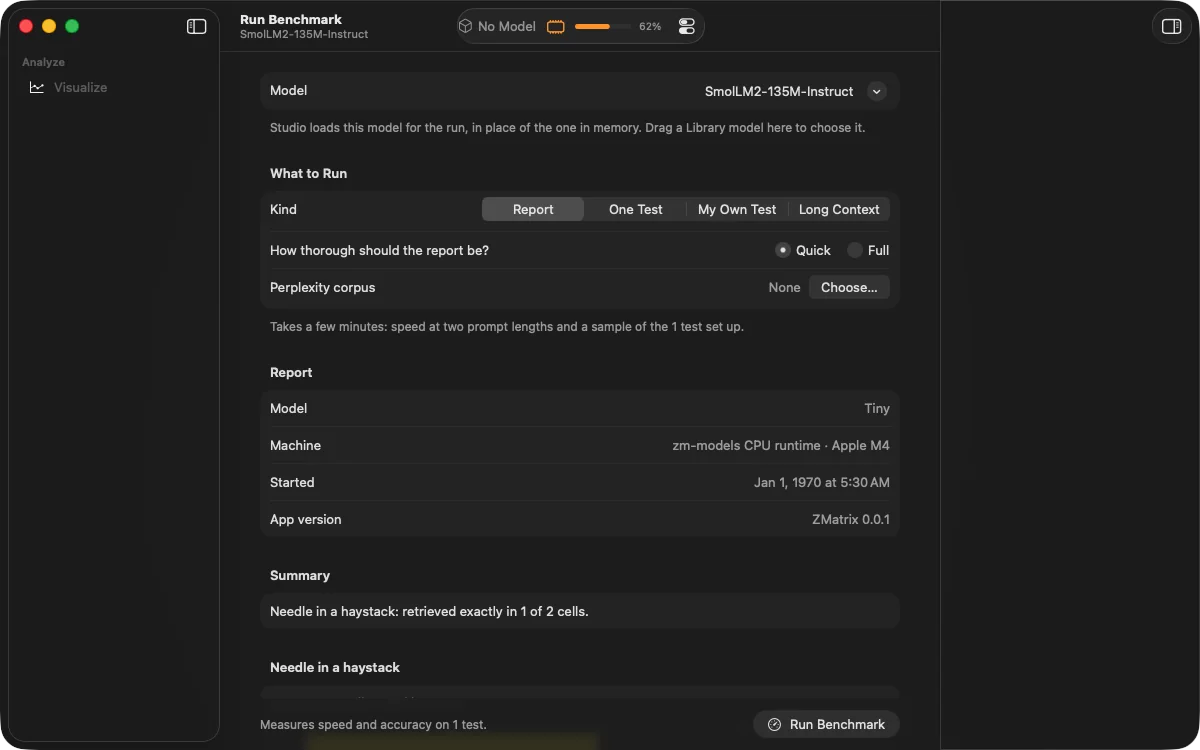
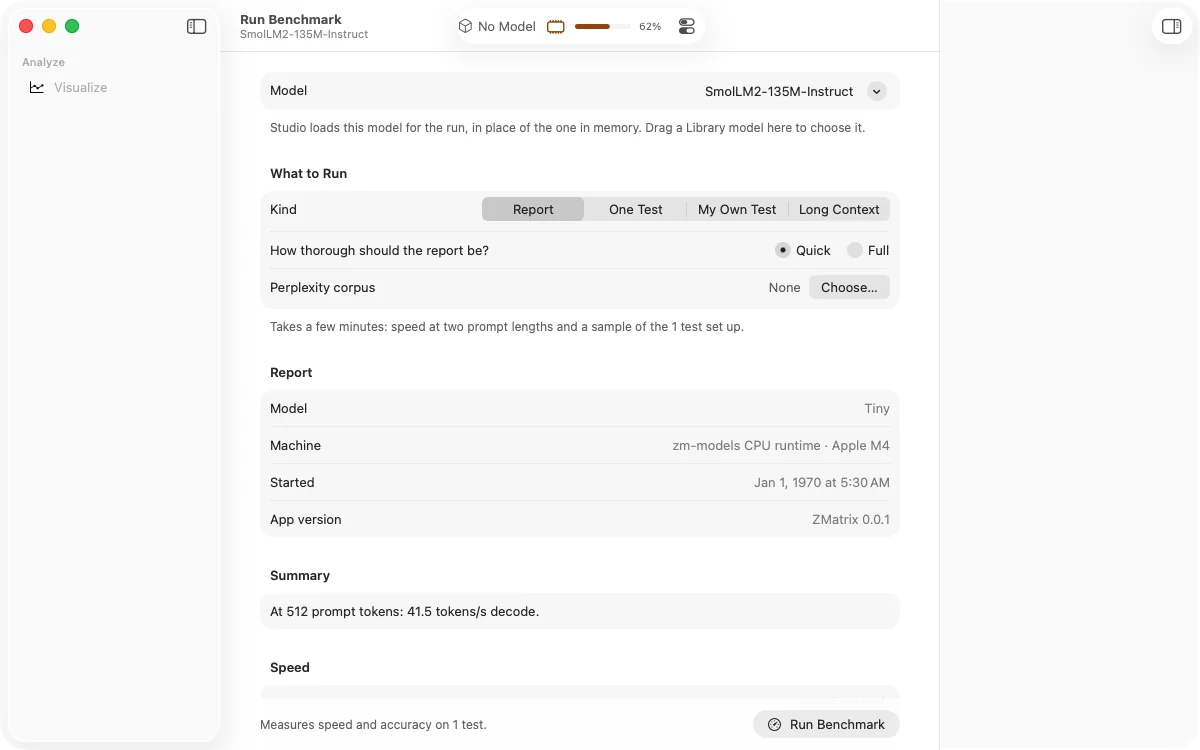
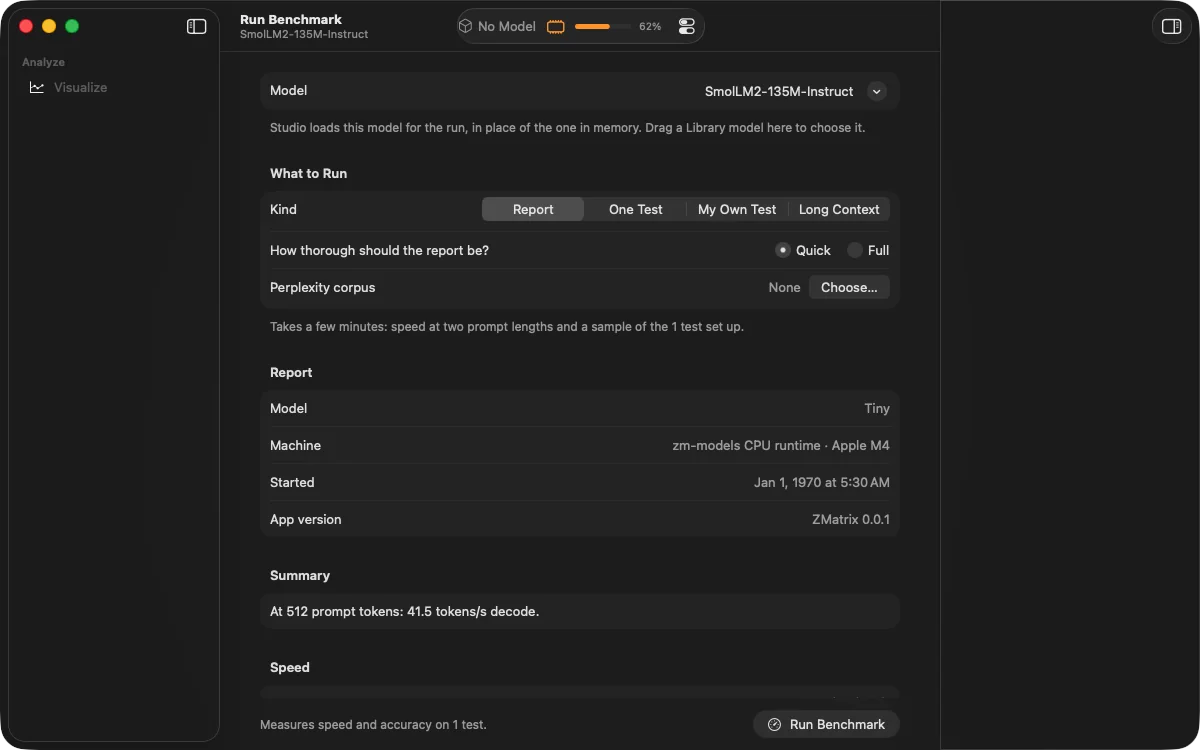
Measure speed and quality in a click, and keep every result together with the Mac it ran on.
- Speed: how quickly it starts and how fast it writes
- Quality: well-known tests of knowledge, reasoning and maths
- Memory: how well it finds details in long documents
- Blind matchups: two answers, no names, you pick the winner
Automate
Build workflows
you can see.
Connect steps on a canvas to build your own AI workflows: sort a message, send it to the right reply, read it aloud. ZMatrix checks that everything fits in memory before it starts, and your workflow is ready to use from Chat or your own apps.
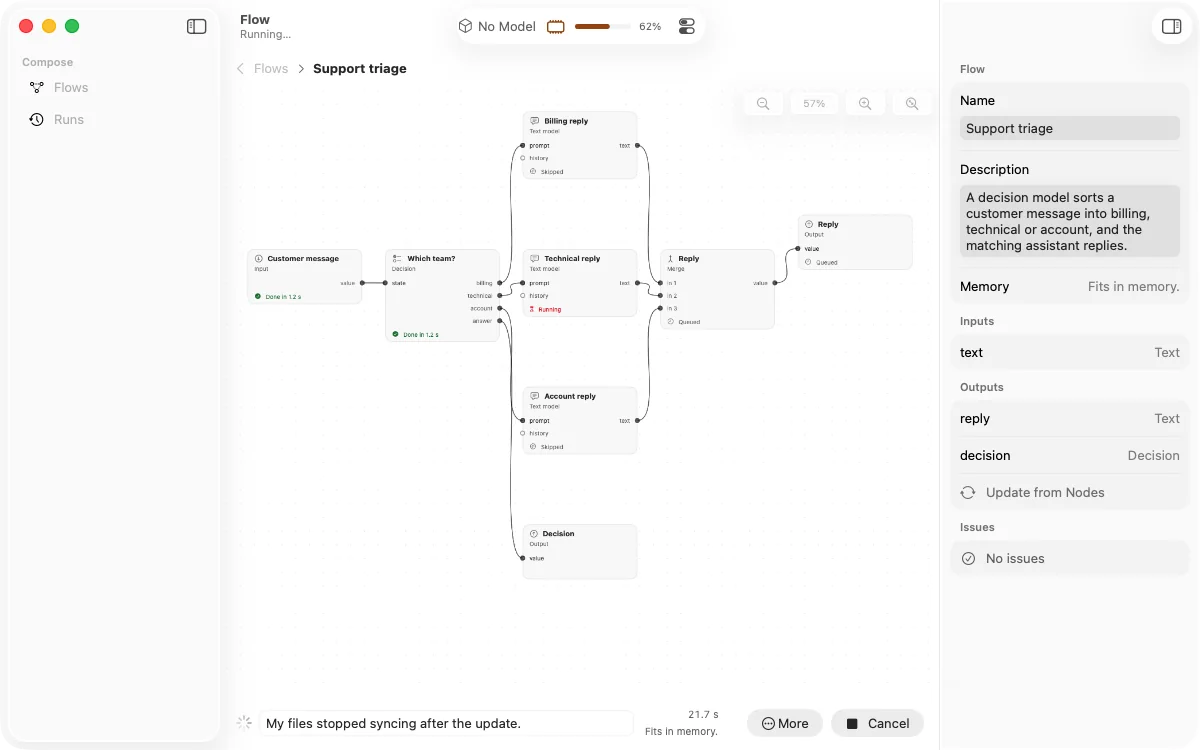
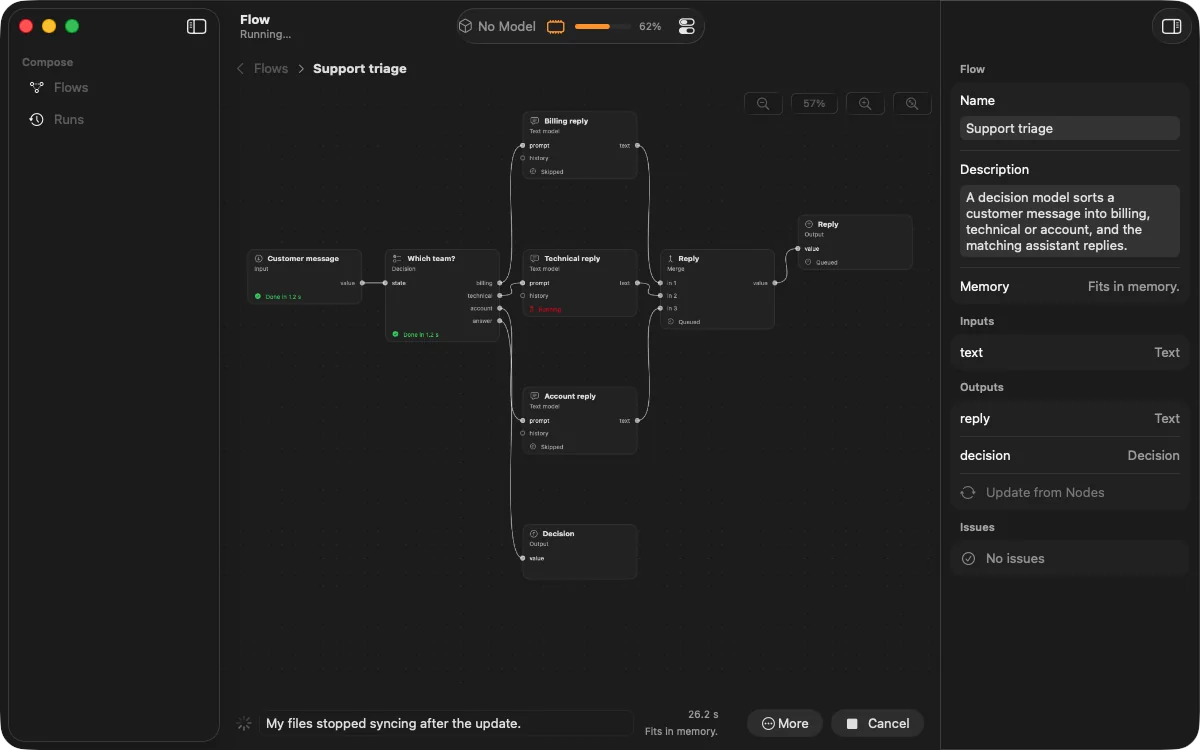
Smart routing
Let a model decide where each message should go, and see how confident it is.
Use it everywhere
Run a workflow from Chat, from your own apps, or from Terminal.
No surprises
Memory is checked up front, so a workflow never stalls half way through.
Chat
Talk to every
model you make.
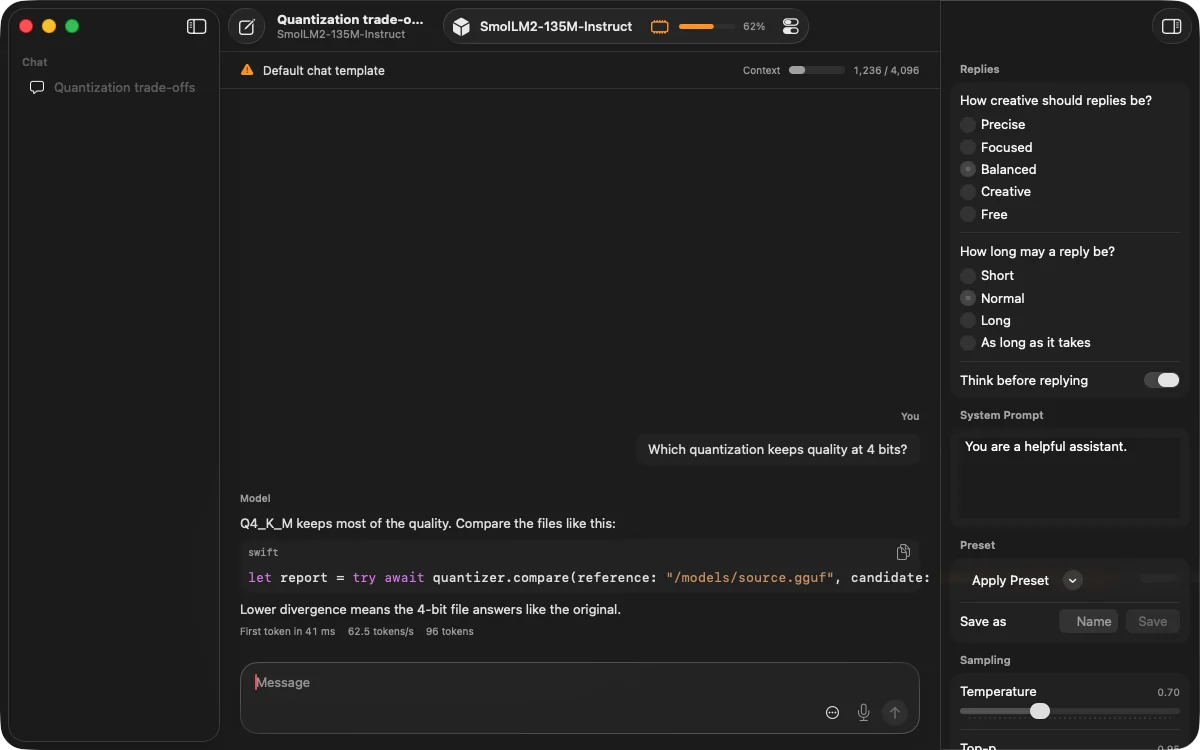
Fast, private conversations with thinking you can expand, code, maths, pictures and voice. Ask two models the same question side by side to see which one you prefer.
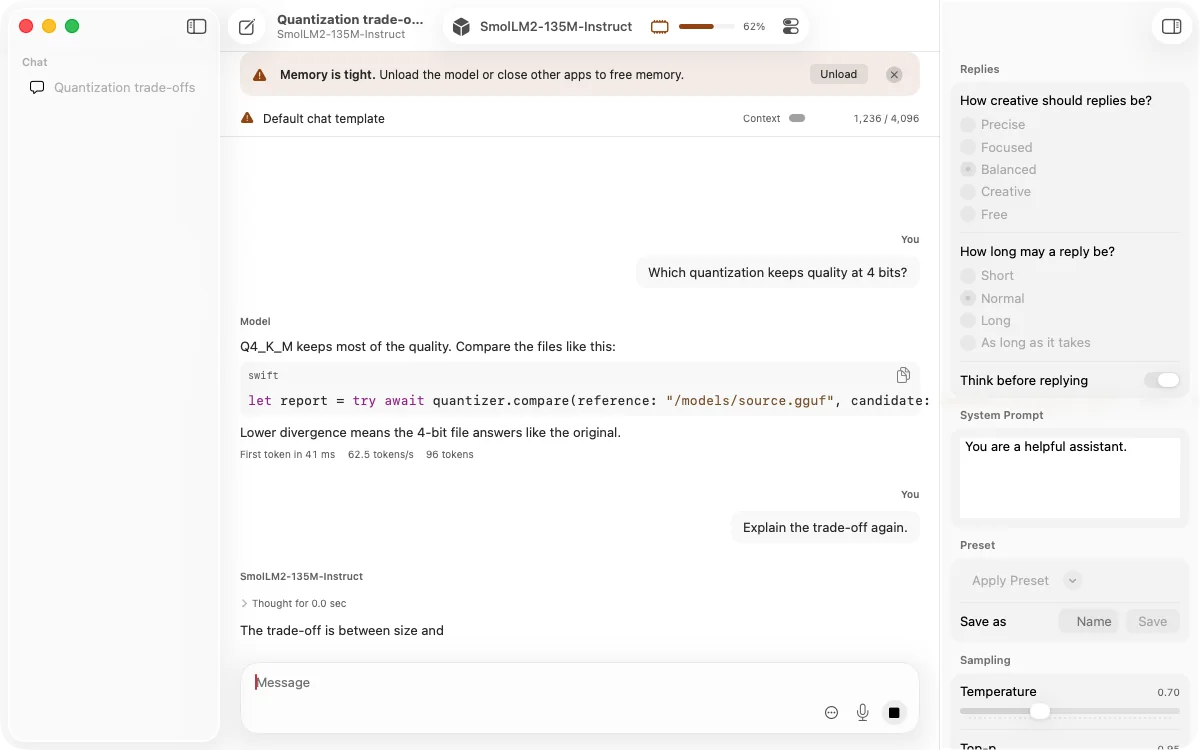
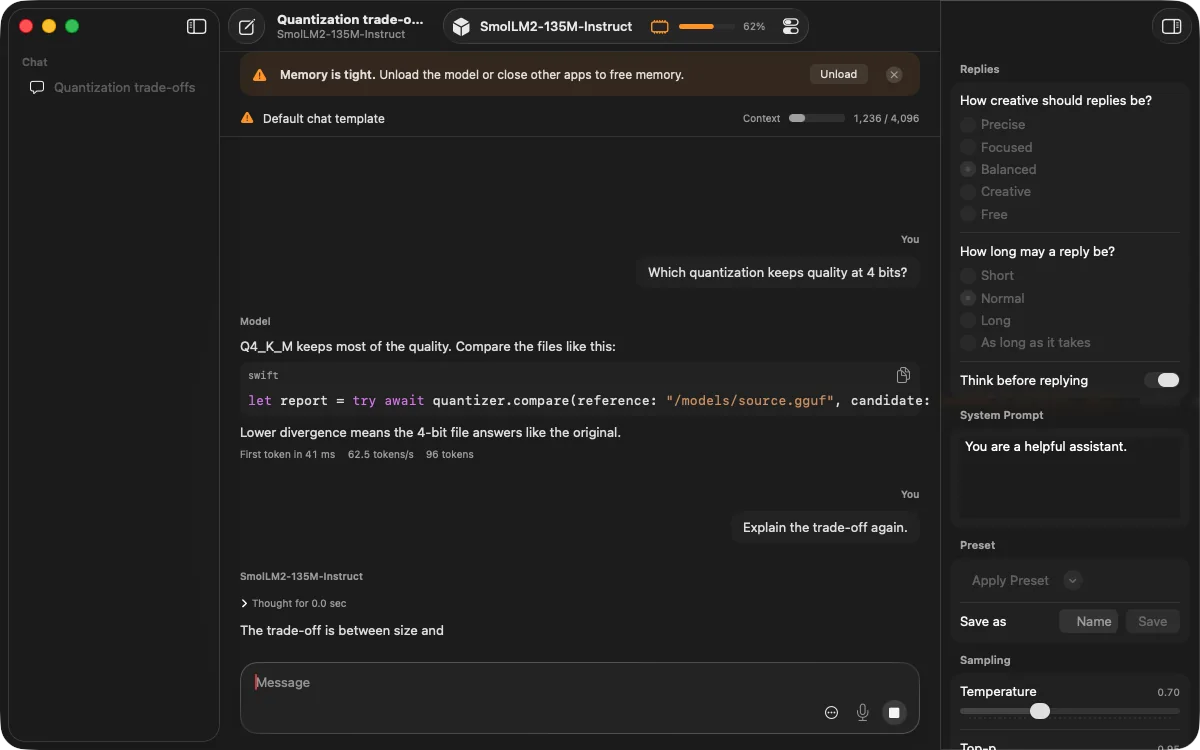
For everyone
Simple or powerful.
You choose.
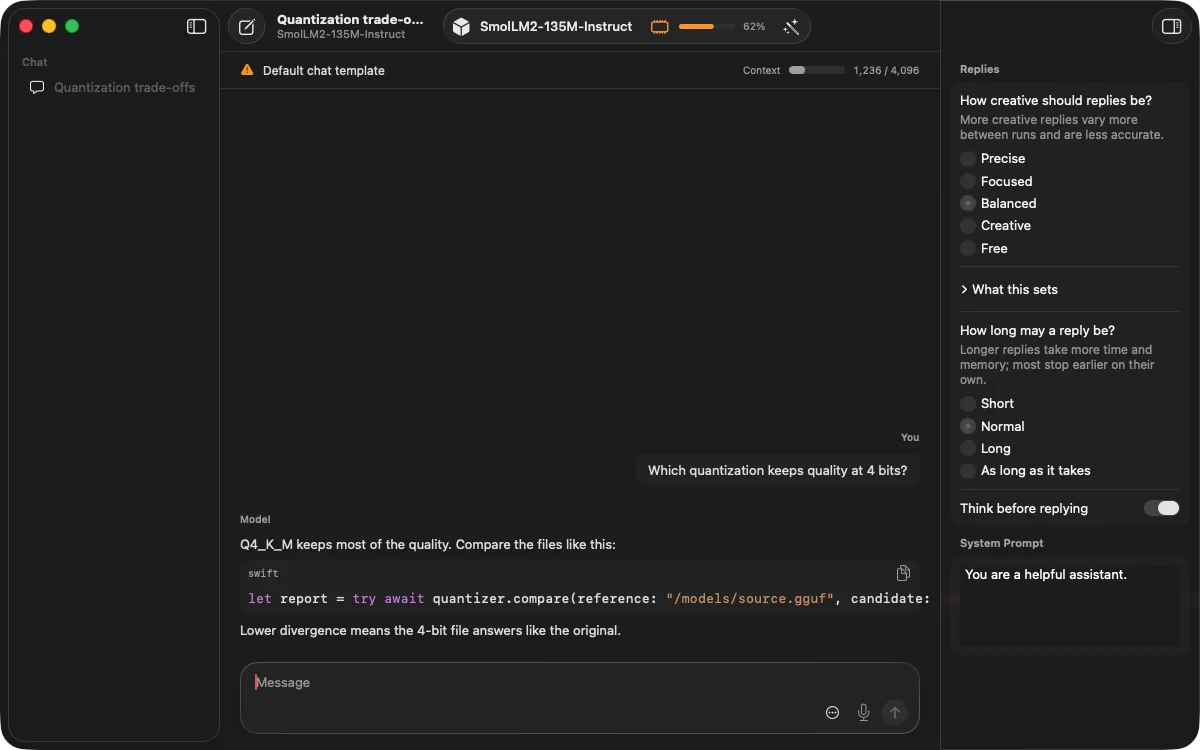
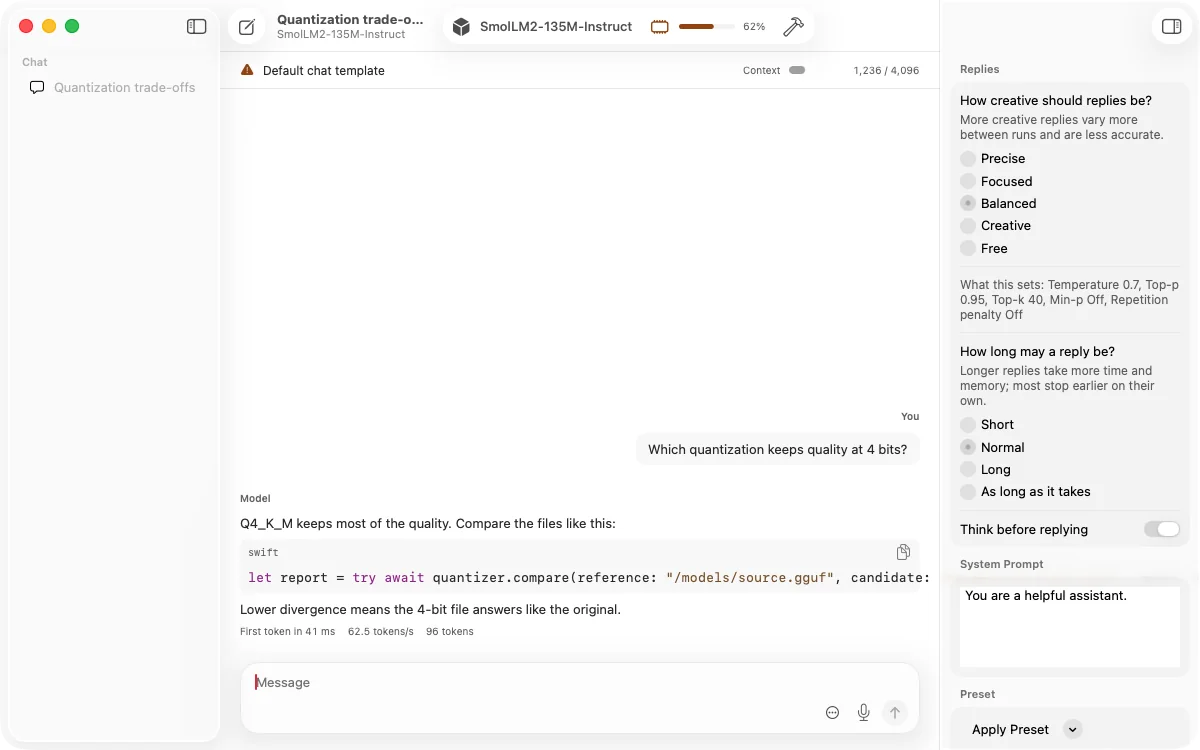
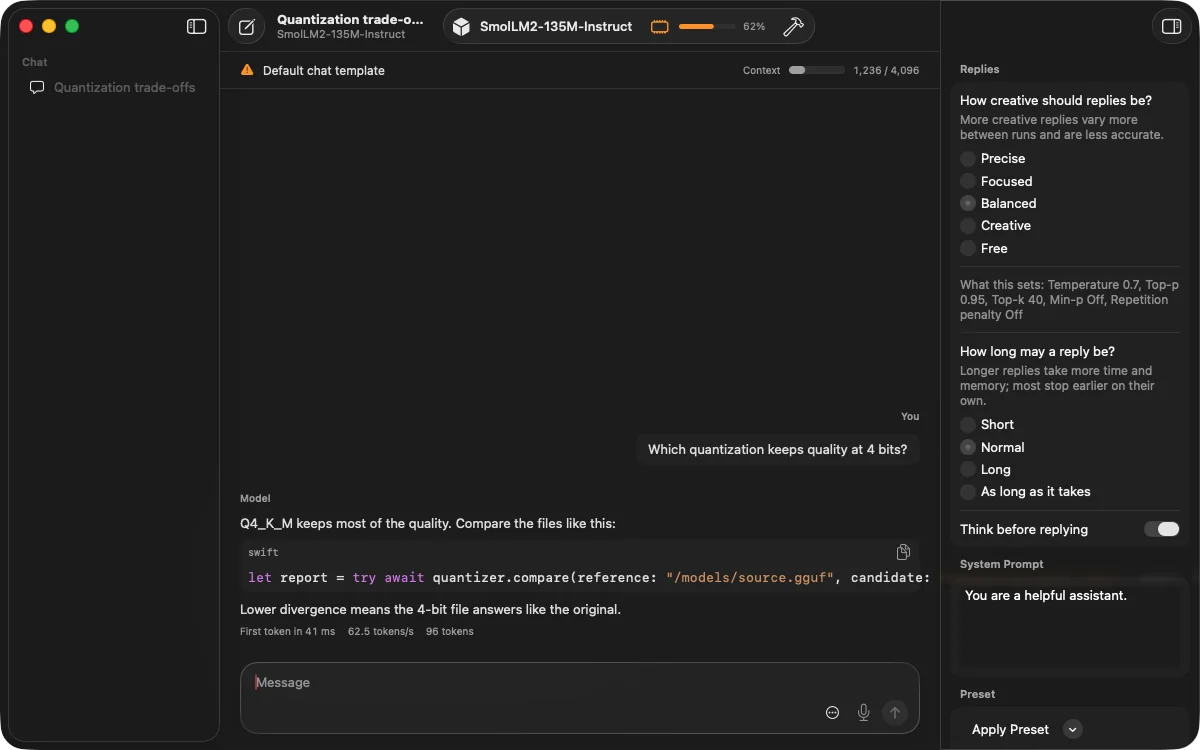
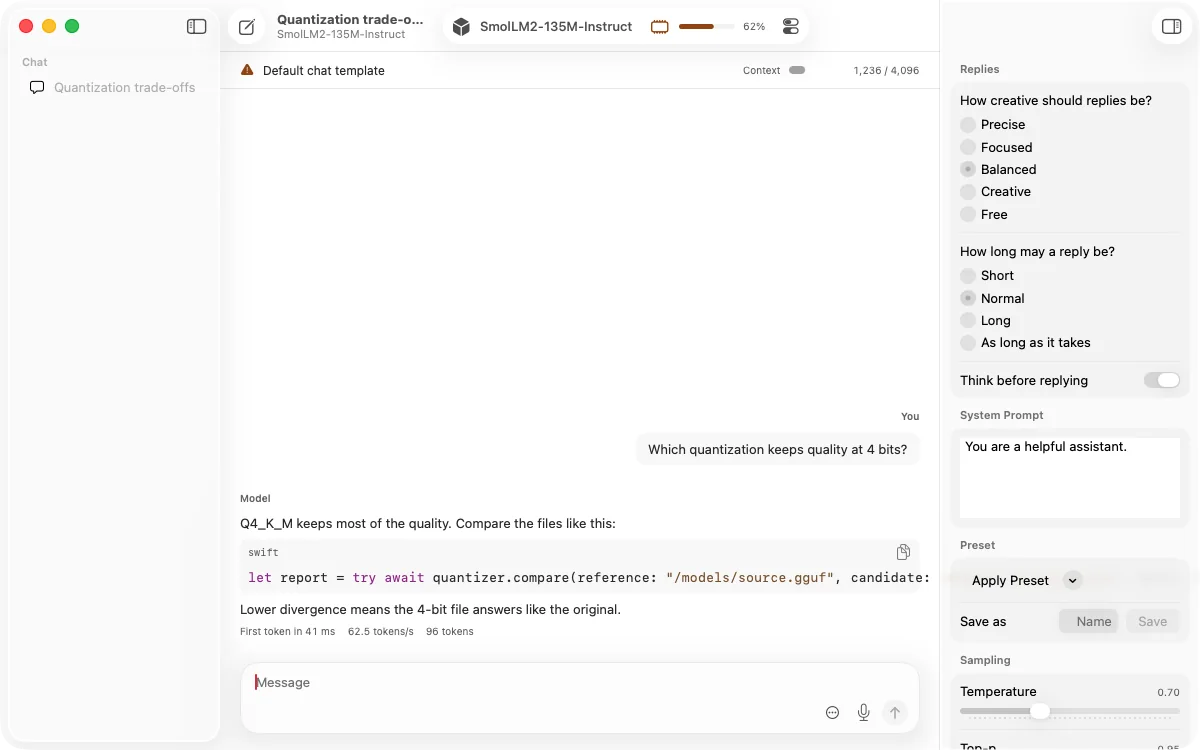
Pick Hobbyist, Developer or Expert and ZMatrix shows just the right amount of detail. Switch whenever you like; your settings stay exactly as they are.
Friendly questions like “How creative should replies be?” ZMatrix takes care of the details.
Every real setting, with a short explanation underneath.
Every control at your fingertips, with explanations a hover away.
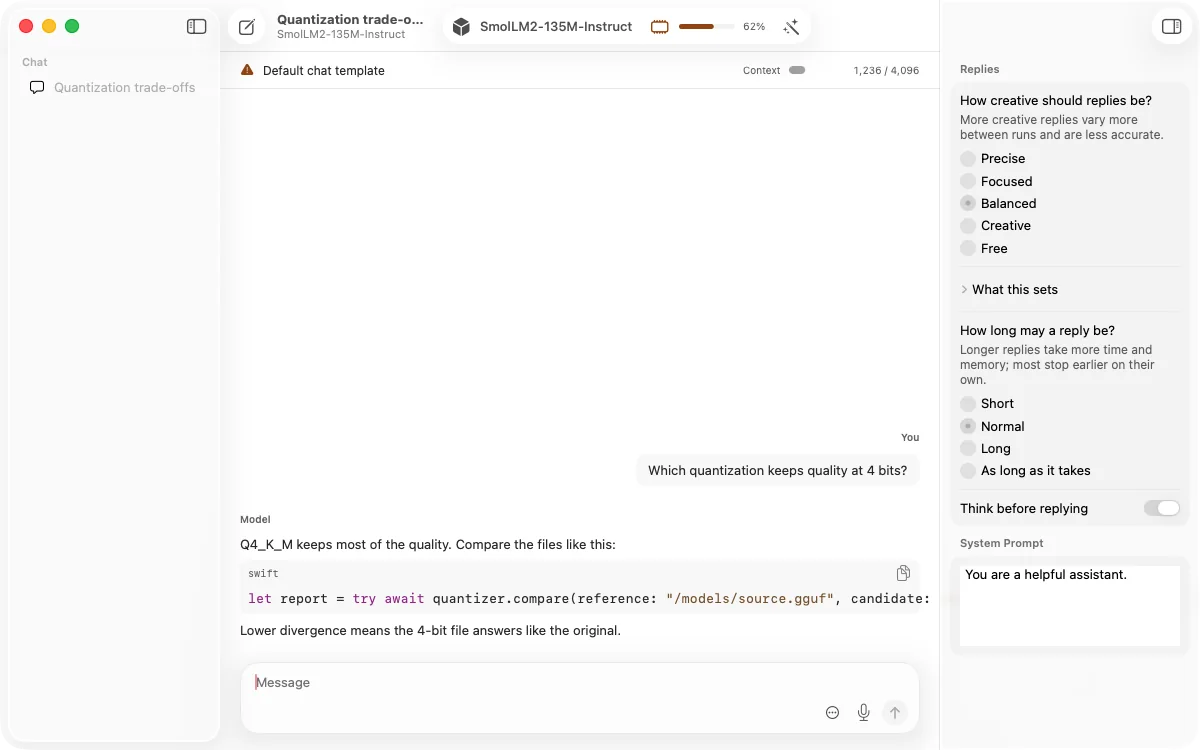
Connect your apps
Your models,
in every app.
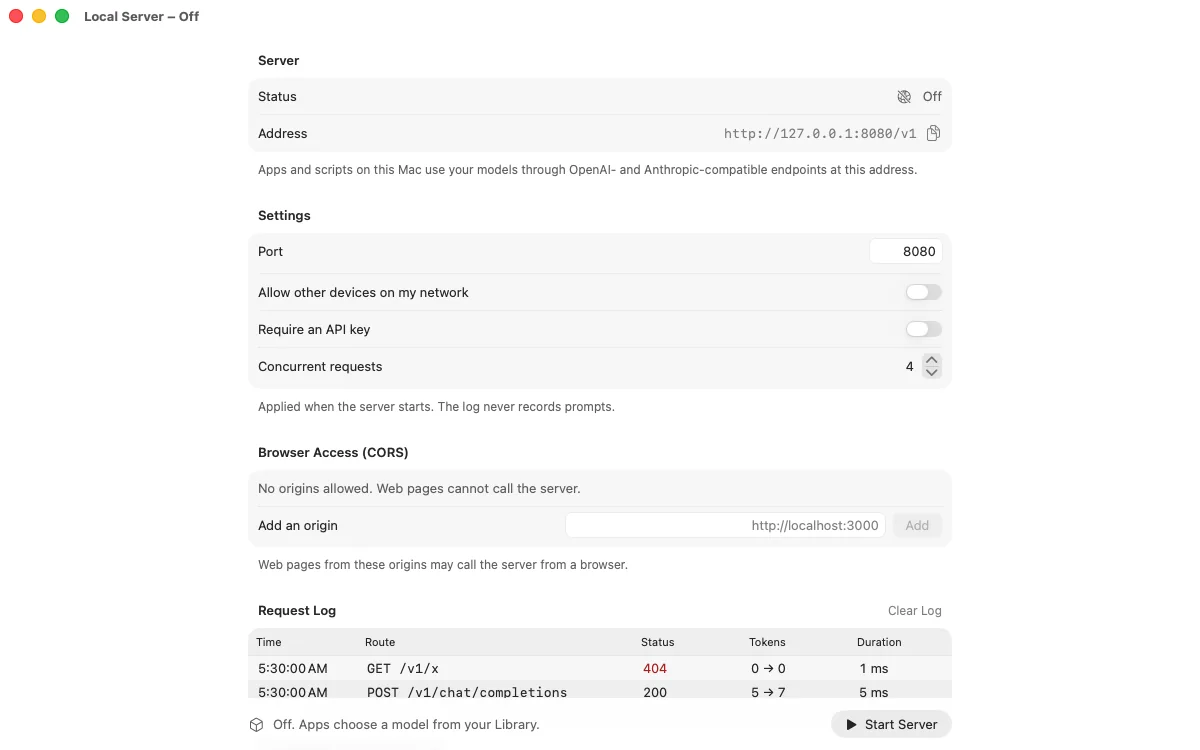
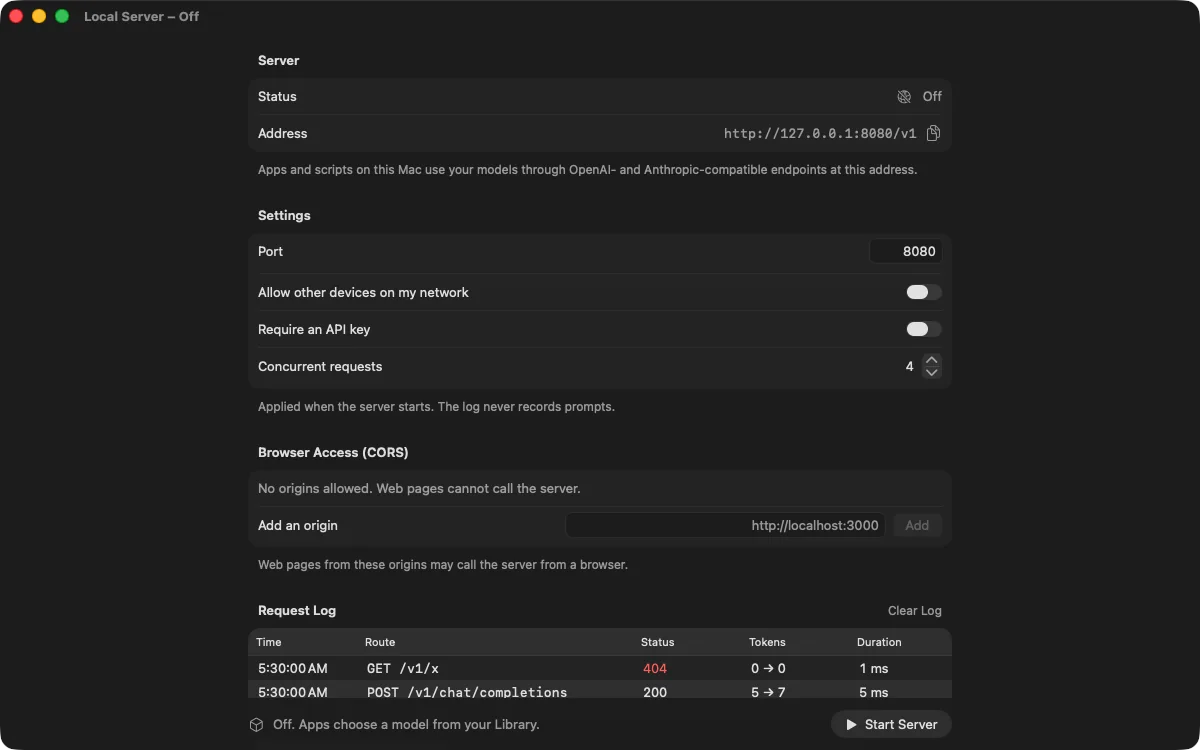
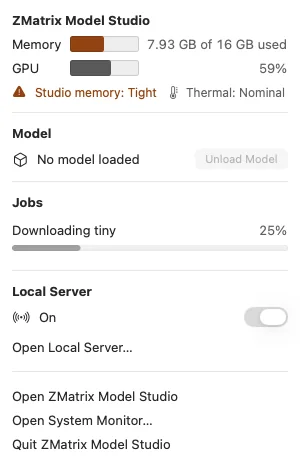
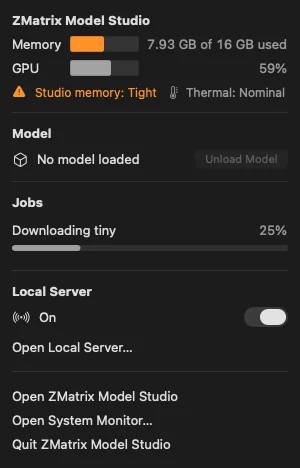
Turn on the built-in server and apps made for OpenAI or Anthropic can use the models on your Mac instead. Share it on your home network with a private key, and switch it on or off from the menu bar.
It can also use the tools you connect, asking for your approval first.
Mac at heart
Feels right at home
on your Mac.
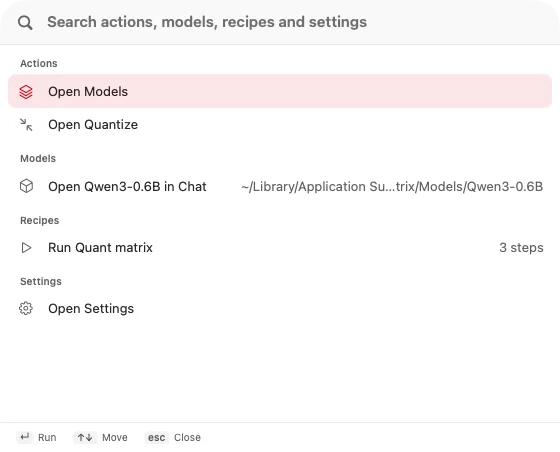
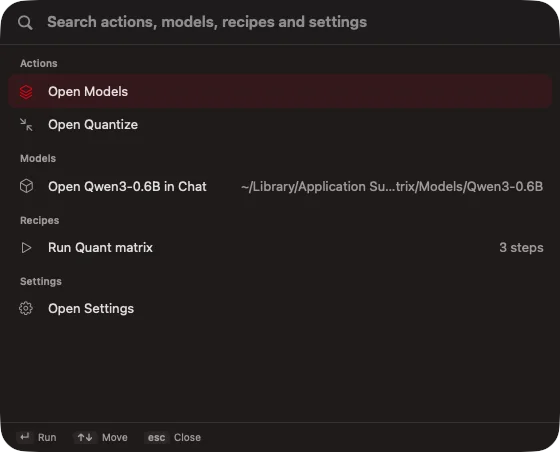
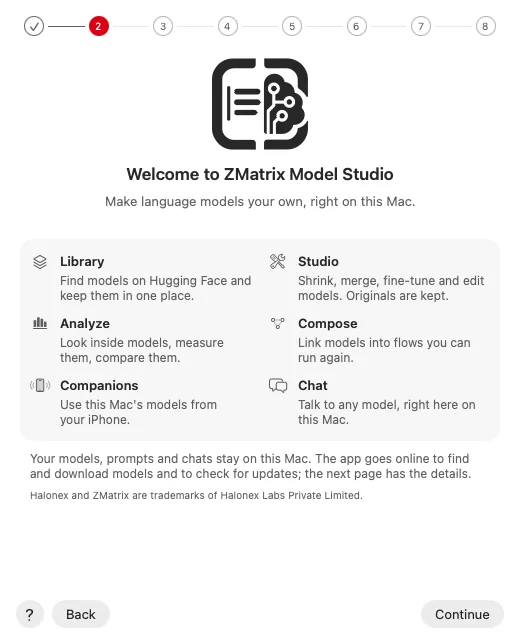
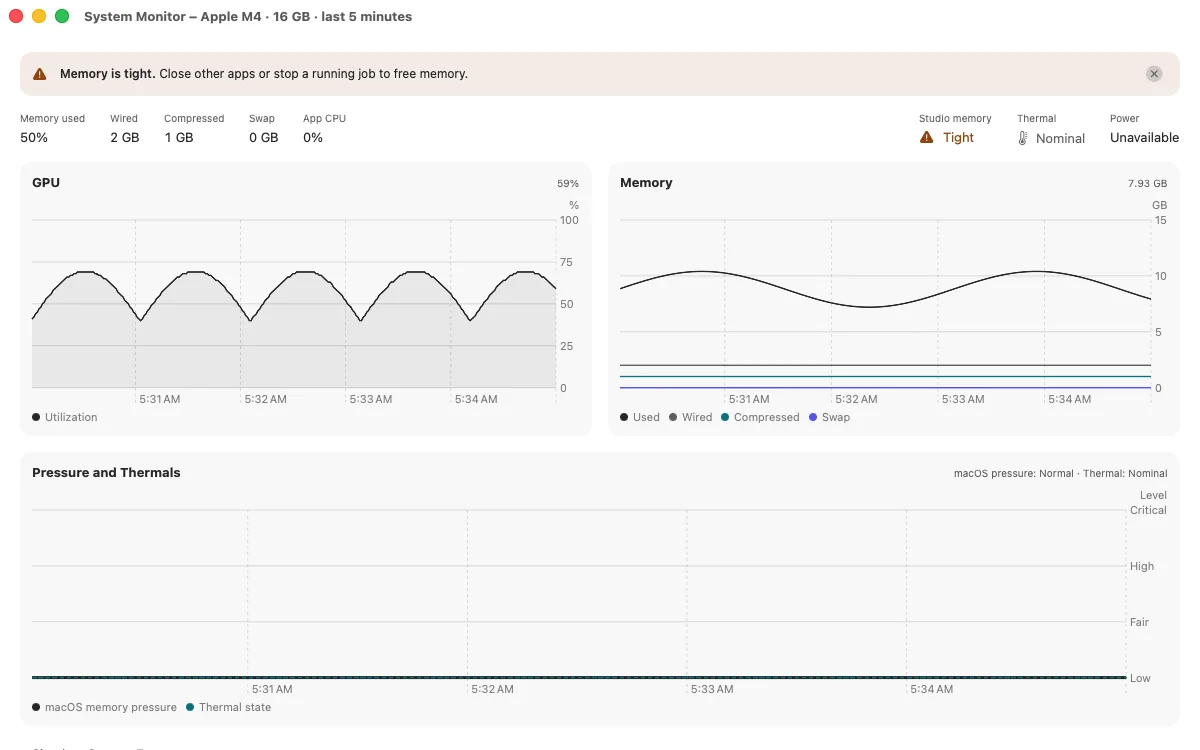
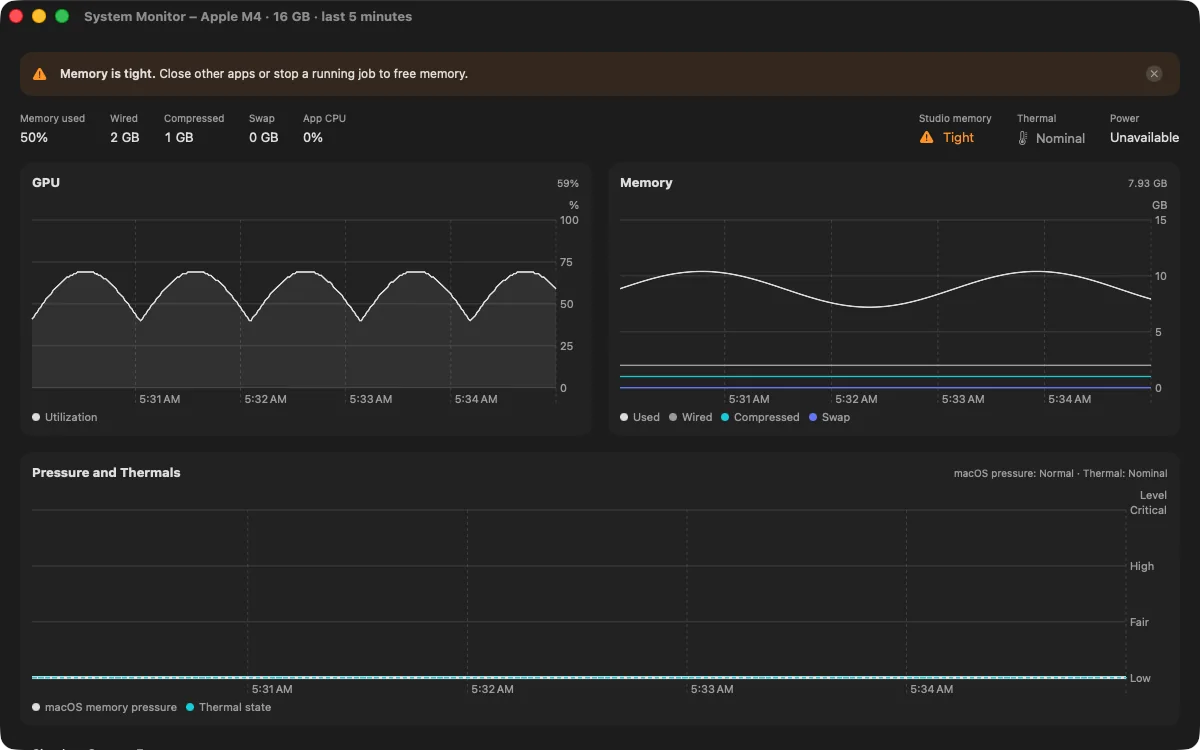
Find anything with ⌘K, keep an eye on things from the menu bar, watch your Mac's performance live, and use drag and drop, Shortcuts and your keyboard for everything. A friendly guide gets you set up in minutes.
Bring your own model.
Or find a new one.
Drag a model onto the window and ZMatrix shows what it can do on your Mac, or browse thousands of free models to get started.